

Code Patterns
Code Pattern is a special type of component that
- generates code based on parameters, and
- can be used in the user interface of New Transformations.
List of Code Patterns
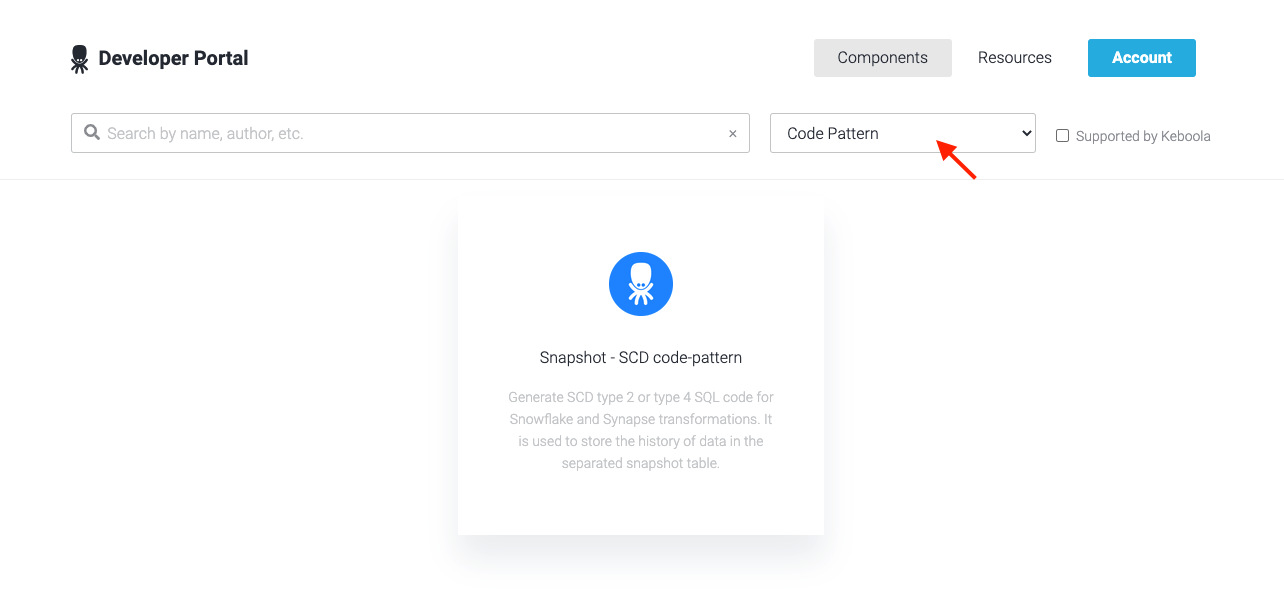
Section titled “List of Code Patterns”All components published with Code Pattern can be found in the Keboola Developer Portal. To find out which transformation types a component can be used for, read its description.
New Transformation with Code Pattern
Section titled “New Transformation with Code Pattern”This section describes how to create a new transformation with a code pattern.
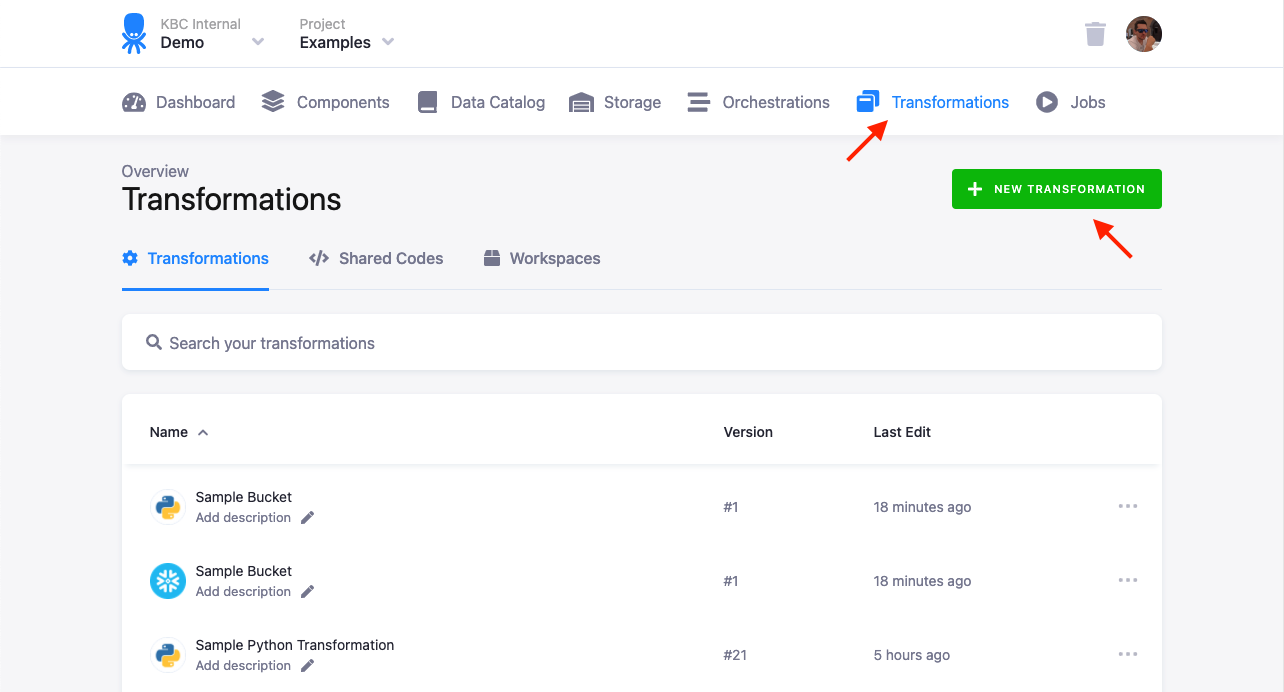
First, click Transformations on the project menu.
Then click New Transformation to create a new transformation.
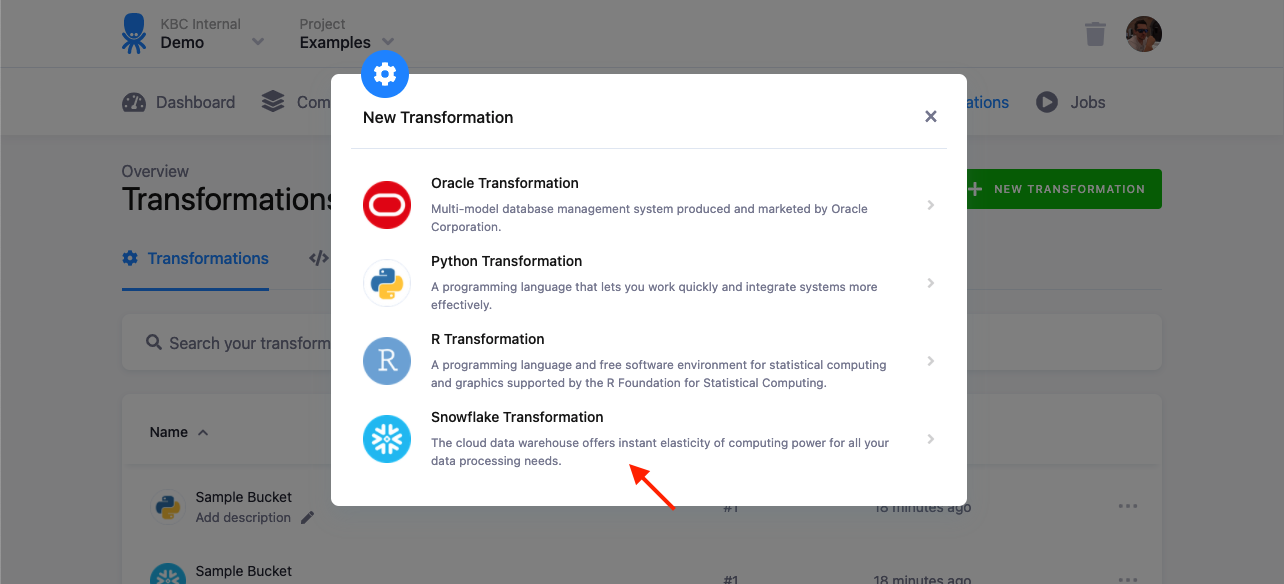
In the modal, click the selected type of the transformation.
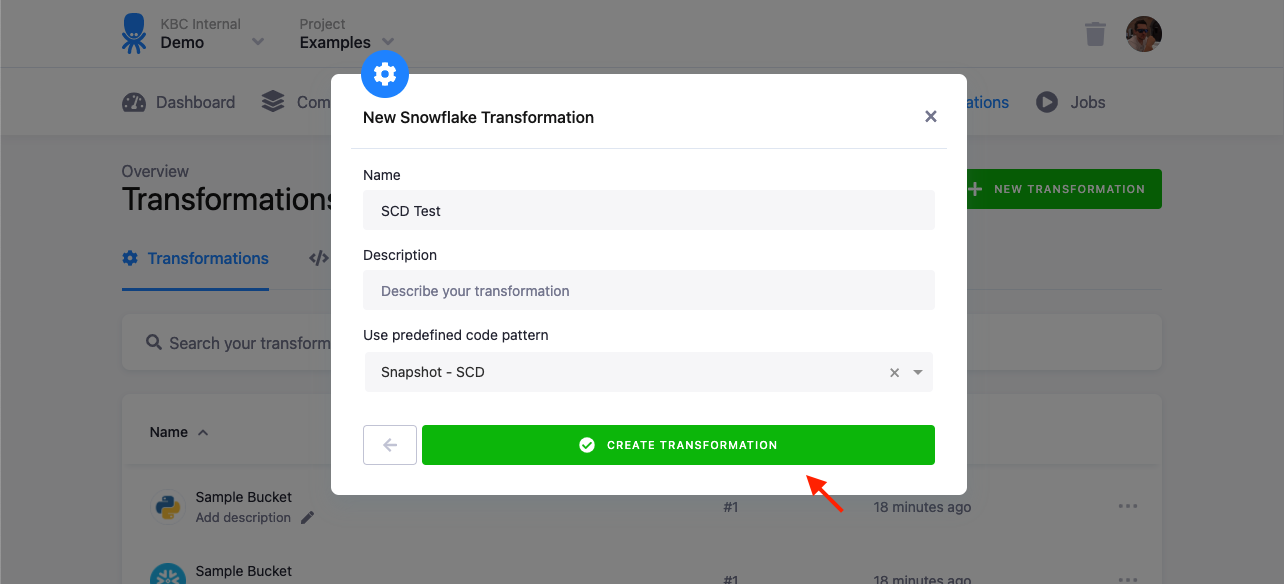
Fill in the name and, optionally, a description.
Then select a code pattern from the Use predefined code pattern select box.
If a code pattern is missing in the list, please check whether it supports the selected transformation type and it is published.
Click the Create Transformation button.
A new transformation has been created and you can see its configuration.
You can now fill in the Parameters Form and click the Generate Code button.
Follow the instructions at the top of the configuration page.
Configuration
Section titled “Configuration”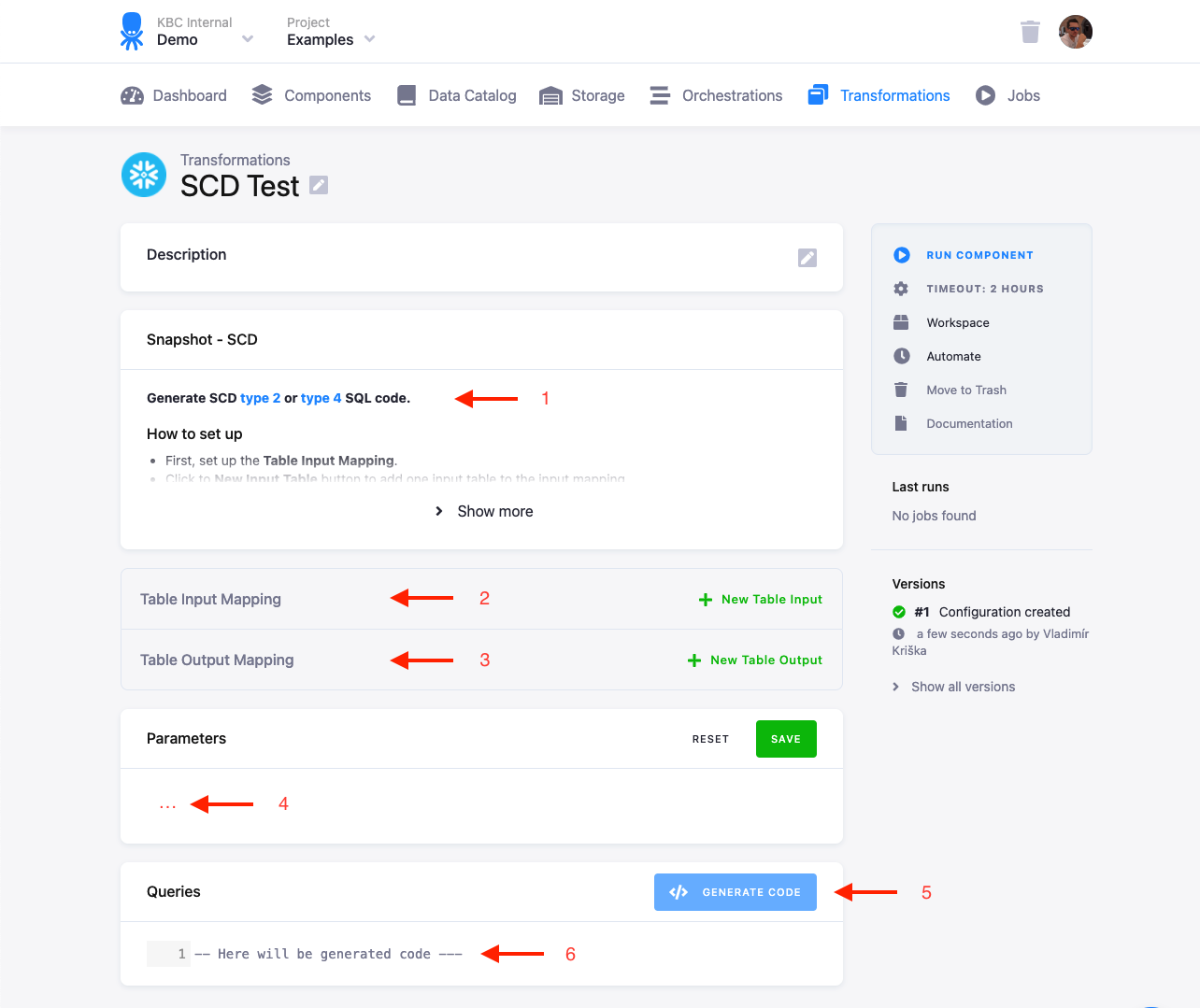
The user interface of the configuration consists of the following:
- Instructions on how to set up the code pattern correctly
- Table Input Mapping
- Table Output Mapping
- Parameters Form of the code pattern
- Generate Code button
- Read-only generated code
Input and Output Mapping
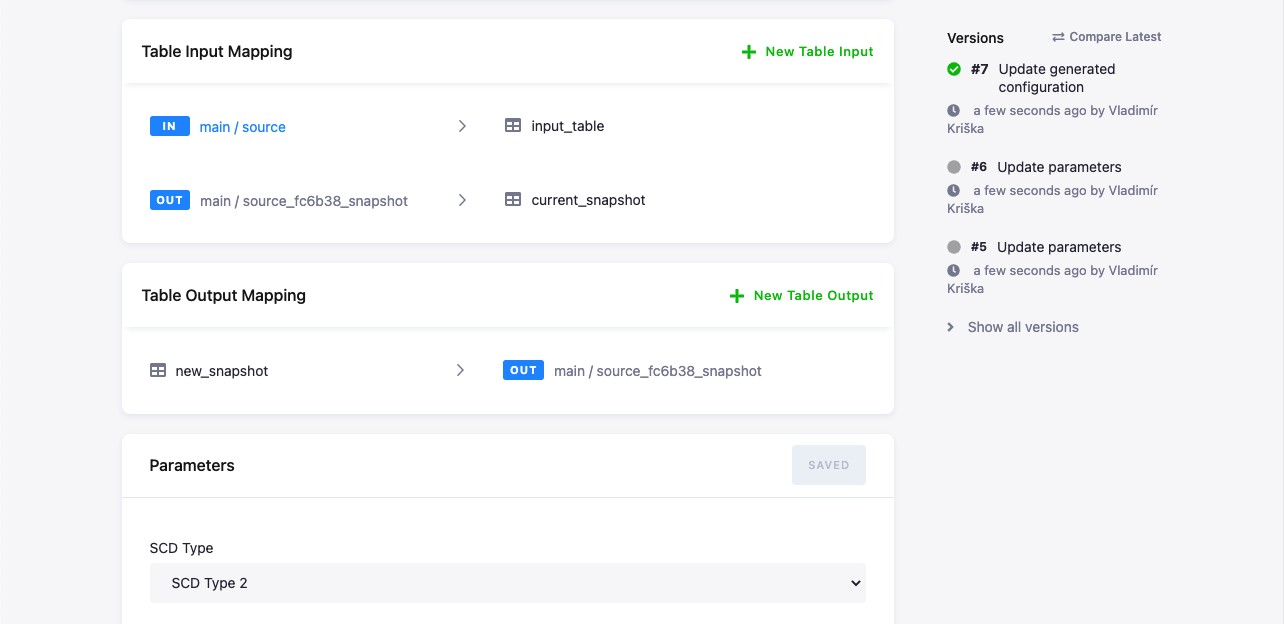
Section titled “Input and Output Mapping”Table Input and Output Mapping can be created either
- manually as in ordinary transformations, or
- automatically, generated together with the code if the component supports it.
Follow the instructions at the top of the configuration page.
Below you can see an example mapping. It was generated by the Snapshot - SCD code pattern.
Parameters Form
Section titled “Parameters Form”The parameters determine the content of the generated code. The form is generated dynamically based on the component specification in the Keboola Developer Portal. Remember to save your changes.

Generated Code
Section titled “Generated Code”Generated code is read only, it cannot be adjusted manually. It is (re)generated by clicking the Regenerate Code button. This calls the Generate Action on the code pattern component with the actual parameters. The result is then saved and displayed.
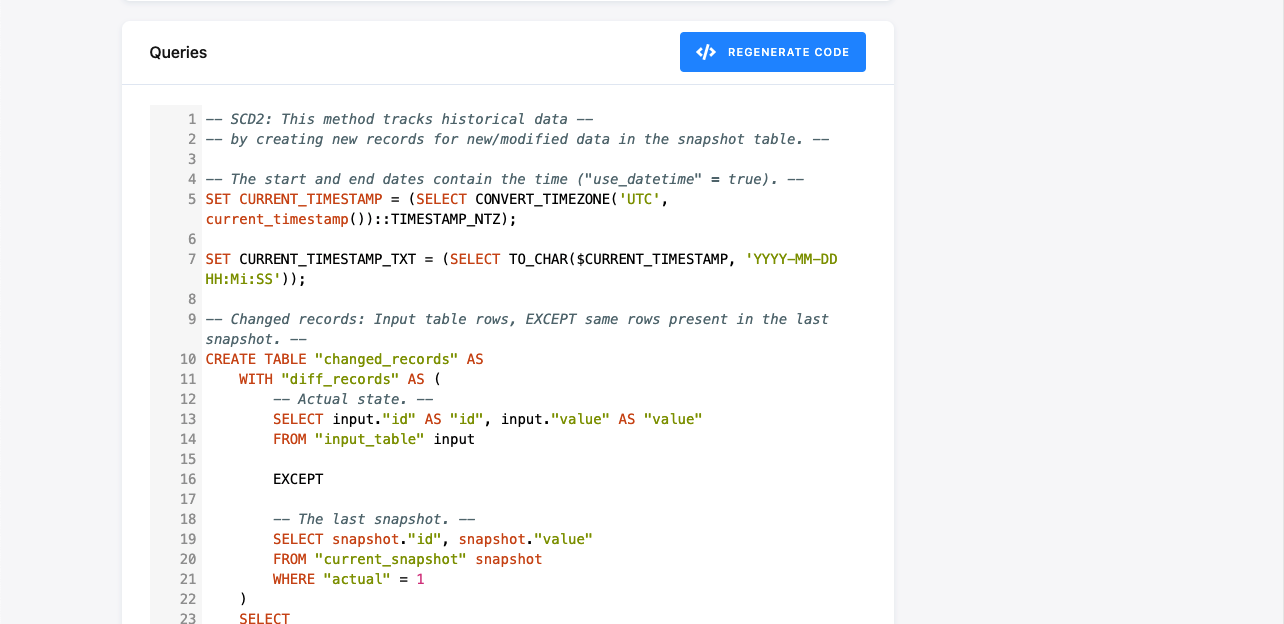
After the code has been generated, you can run the job the standard way.