

MS Outlook IMAP Email Content and Attachments (Office 365)
The Microsoft Outlook extractor for Office 365 is based on IMAP. It allows you to download emails and their attachments from Office 365 accounts.
Authorization
Section titled “Authorization”Create a new configuration for the MS Outlook extractor. Then click Authorize Account to authorize the configuration.
IMAP Settings
Section titled “IMAP Settings”To configure the connection, please specify the following parameters in IMAP Settings:
- User Name: Your email address, e.g.,
data@keboola.onmicrosoft.com. - IMAP Host: The address of the IMAP server. For Office 365, use
outlook.office365.com. - IMAP Port: The port for the IMAP server. For Office 365, use 993.
Row Configuration
Section titled “Row Configuration”Click the Add Row button and name the row appropriately.
Search Query
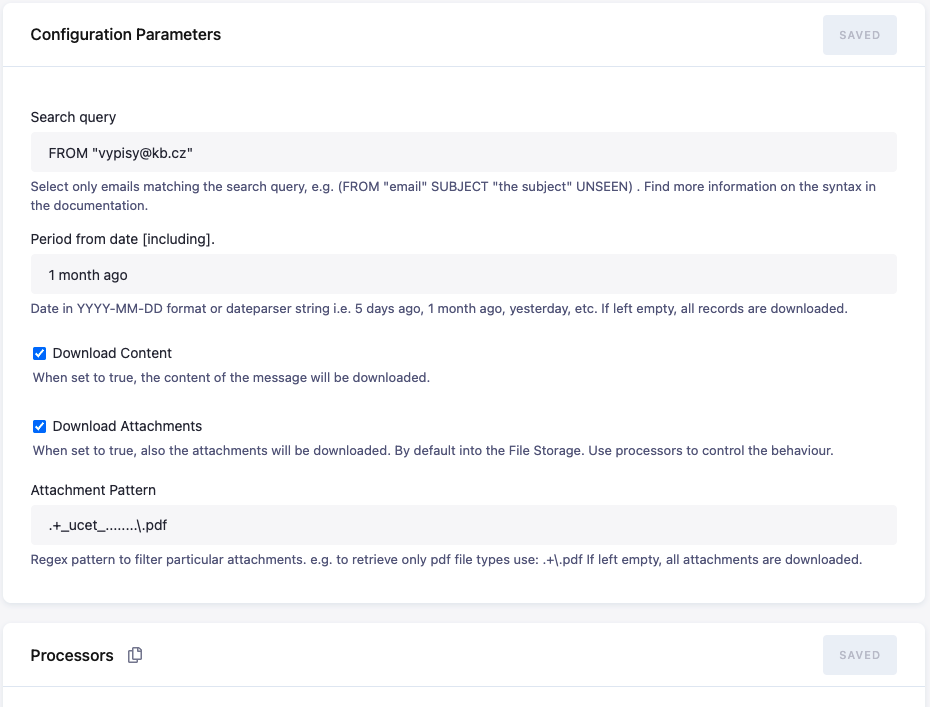
Section titled “Search Query”Enter a Search query to filter only the emails you want. By default, all emails are downloaded. The most common use case is to filter emails
by Subject and Sender, e.g., (FROM "sender-email@example.com" SUBJECT "the subject"). You can create more complex queries if needed;
refer to the query syntax for examples.
IMAP Folder
Section titled “IMAP Folder”Specify the folder from which to retrieve emails. Defaults to the root folder INBOX. For example, in Gmail, a label can function as a folder.
Mark as Seen
Section titled “Mark as Seen”When selected, emails that have been extracted will be marked as “seen” in the inbox.
Period from Date
Section titled “Period from Date”Use this field to filter emails received since a specific date. The field supports fixed dates in the format YYYY-MM-DD as well as
relative dates like yesterday, 1 month ago, 2 days ago, etc. To avoid missing data, set this to cover a buffer period, e.g., 2 days ago when
running daily. The data is always incrementally upserted, so duplicates won’t appear in the resulting table.
Download Content
Section titled “Download Content”Select this option to download the email content.
Download Attachments
Section titled “Download Attachments”When enabled, attachments are also downloaded. You may use a regex pattern to filter only specific attachments.
For example, to match only PDF files, use the pattern .+.pdf. If left empty, all attachments are downloaded.
By default, files are downloaded into File Storage. Use processors to control the behavior.
Example 1 - Processing CSV attachments
Section titled “Example 1 - Processing CSV attachments”If your attachments are in CSV format, you can use this combination of processors to store them in Table Storage:
- Set the
folderparameter in the first processor to match the resulting table name. - Use the second processor to define that the result will always replace the destination table and expects header in the CSV file.
- Note: In this setup, all attachments will be stored in the same table, so they msut share the same structure.
{ "before": [], "after": [ { "definition": { "component": "keboola.processor-move-files" }, "parameters": { "direction": "tables", "folder": "result_table" } }, { "definition": { "component": "keboola.processor-create-manifest" }, "parameters": { "delimiter": ",", "enclosure": "\"", "incremental": false, "primary_key": [], "columns_from": "header" } }, { "definition": { "component": "keboola.processor-skip-lines" }, "parameters": { "lines": 1 } } ]}Example 2 - Processing XLSX attachments
Section titled “Example 2 - Processing XLSX attachments”If your attachments are in XLSX format, you can use this combination of processors to store them in Table Storage:
- The first processor converts each XSLX sheet into a separate table.
- The second processor moves the converted files for output staging to the tables folder.
{ "before": [], "after": [ { "definition": { "component": "kds-team.processor-xlsx2csv" }, "parameters": { "addFileName": true, "selectSheets": [], "ignoreSheets": [] } }, { "definition": { "component": "keboola.processor-move-files" }, "parameters": { "direction": "tables" } } ]}Example 3 - Storing attachments in File Storage and adding custom tags
Section titled “Example 3 - Storing attachments in File Storage and adding custom tags”Use this processor to store attachments in File Storage with custom tags. It adds custom tags to the resulting files and offers additional options to create tags based on the resulting file name.
{ "before": [], "after": [ { "definition": { "component": "kds-team.processor-create-file-manifest" }, "parameters": { "tags": [ "SOME_TAG" ], "is_permanent": false, "tag_functions": [] } } ]}Output
Section titled “Output”A single table named emails contains the email contents.
Results are inserted incrementally to avoid duplicates.
Columns: 'pk', 'uid', 'mail_box', 'date', 'from', 'to', 'body', 'headers', 'number_of_attachments', 'size'
Attachments
Section titled “Attachments”Attachments are stored by default in File Storage, with filenames prefixed by the generated message primary key, e.g., bb41793268d4a8710fb5ebd94eaed6bc_some_file.pdf.
Files include tags to distinguish their source:

Additional tags can be specified with the Create File Manifest processor. Attachments can also be further processed and stored in Table Storage using other processors.