

PostgreSQL
PostgreSQL is an open-source database renowned for its advanced features, reliability, and performance. It enables the development of robust, scalable applications.
Our connectors support the most recent versions of PostgreSQL. You may choose different strategies to sync your data:
Query-Based Connector
Section titled “Query-Based Connector”This is a standard connector that performs queries against the source database to sync data. It is the simplest approach suitable for most use cases and allows for time-stamp based CDC replication.
They are all configured in the same way and have an advanced mode.
Their basic configuration is also part of the Tutorial - Loading Data with Database Extractor.
PostgreSQL Log-Based CDC
Section titled “PostgreSQL Log-Based CDC”This connector uses the Debezium connector
under the hood. The connector captures row-level changes in the schemas of a PostgreSQL database. It uses the pgoutput
logical decoding output plug-in available in PostgreSQL 10+.
Functionality
Section titled “Functionality”This connector uses the Debezium connector
under the hood. The connector captures row-level changes in the schemas of a PostgreSQL database. It uses the pgoutput
logical decoding output plug-in available in PostgreSQL 10+. It is maintained by the PostgreSQL community, and
used by PostgreSQL itself for logical replication. This plug-in is always present so no additional libraries need to be
installed.
The first time it connects to a PostgreSQL server or cluster, the connector takes a consistent snapshot of all schemas. After that snapshot is complete, the connector continuously captures row-level changes that insert, update, and delete database content and that were committed to a PostgreSQL database.
Snapshots
Section titled “Snapshots”When the connector starts for the first time, it performs an initial consistent snapshot of your database. This snapshot establishes a baseline for the database’s current state.
The connector completes a series of tasks during the snapshot process, which vary depending on the selected snapshot mode and the table-locking policy in effect for the database.
You can choose from different snapshot modes in the Sync Options > Replication Mode configuration setting.
For more technical details on how snapshots work, see the official Debezium documentation.
Resumable Snapshots
Section titled “Resumable Snapshots”The Debezium Postgres connector supports partially resumable snapshots, enabling the connector to recover from failures during the snapshot process, such as those caused by network issues or connector timeouts.
If a failure occurs during the snapshot phase, the connector logs a warning and gracefully terminates the job, saving the progress made up to that point. Upon restarting, the connector resumes the snapshot from the last known position, retrying the snapshot for the last unfinished table and any remaining tables.
Schema Drift
Section titled “Schema Drift”The connector seamlessly manages schema changes in the source database, such as ADD and DROP columns.
Schema changes are handled as follows:
- ADD column
- The new column is added to the destination table. Historic values will be empty (default values are not reflected).
- DROP column
- The column remains in the destination table.
- Any NOT NULL constraint on the column is removed.
- Values in the column will be NULL/EMPTY following its deletion in the source.
System Columns
Section titled “System Columns”Each result table includes the following system columns:
| Name | Base Type | Note |
|---|---|---|
| KBC__OPERATION | STRING | Event type, e.g., r - read on init sync; c - INSERT; u - UPDATE; d - DELETE |
| KBC__EVENT_TIMESTAMP_MS | TIMESTAMP | Source database transaction timestamp. Represents milliseconds since epoch if native types are not enabled. |
| KBC__DELETED | BOOLEAN | True when the event is a delete event (indicating the record is deleted). |
| KBC__LSN | INTEGER | Log Sequence Number (LSN) of the transaction. |
| KBC__BATCH_EVENT_ORDER | INTEGER | Order of the events in the current batch (extraction). Can be used with KBC__EVENT_TIMESTAMP_MS to track the latest event per record (ID). |
Data Type Mapping
Section titled “Data Type Mapping”PostgreSQL datatypes are mapped to Keboola Base Types as follows:
Based on the selected JSON file, the base_type column in the table will be updated accordingly:
| source_type | base_type | note |
|---|---|---|
| INTEGER | INTEGER | |
| SMALLINT | INTEGER | |
| INTEGER | INTEGER | |
| INTEGER | INTEGER | |
| BIGINT | INTEGER | |
| DECIMAL | NUMERIC | |
| NUMERIC | NUMERIC | |
| FLOAT | FLOAT | |
| REAL | FLOAT | |
| DOUBLE PRECISION | FLOAT | |
| SMALLSERIAL | INTEGER | |
| SERIAL | INTEGER | |
| BIGSERIAL | INTEGER | |
| MONEY | NUMERIC | |
| CHARACTER | STRING | |
| CHAR | STRING | |
| CHARACTER VARYING | STRING | |
| VARCHAR | STRING | |
| TEXT | STRING | |
| BYTEA | STRING | |
| TIMESTAMP | TIMESTAMP | |
| TIMESTAMP WITH TIME ZONE | TIMESTAMP | |
| DATE | DATE | |
| TIME | STRING | HH:MM:SS format |
| TIME WITH TIME ZONE | STRING | HH:MM:SS+TZ format |
| INTERVAL | STRING | |
| BOOLEAN | BOOLEAN | |
| POINT | STRING | |
| CIDR | STRING | |
| INET | STRING | |
| MACADDR | STRING | |
| MACADDR8 | STRING | |
| BIT | STRING | |
| BIT VARYING | STRING | |
| UUID | STRING | |
| XML | STRING | |
| JSON | STRING | |
| JSONB | STRING | |
| INTEGER[] | STRING | |
| INT4RANGE | STRING | |
| LTREE | STRING | Contains the string representation of a PostgreSQL LTREE value. |
| CITEXT | STRING |
Other types are not supported, and such columns will be skipped from syncing.
Publication Creation
Section titled “Publication Creation”The connector requires a user with the rds_replication role.
To enable a user account other than the master account to initiate logical replication,
you must grant the account the rds_replication role. For example,
grant rds_replication to <my_user>There are several options for determining how publications are created. In general, it is best to manually create publications for the tables you want to capture before setting up the connector.
Manual publication creation
Section titled “Manual publication creation”This is the recommended approach. Set the connector’s Publication Auto Create Mode to disabled.
This way, the connector will not attempt to create a publication. A database administrator or
the user configured for replication should create the publication before running the connector.
You can create a publication manually for a specific table, use the following SQL command:
CREATE PUBLICATION my_publication FOR TABLE my_table;Or, to create a publication for all tables in a schema:
CREATE PUBLICATION my_publication FOR ALL TABLES;Then set the Publication Name in the connector configuration to my_publication.
Automatic publication creation
Section titled “Automatic publication creation”- Replication privileges on the database to add tables to a publication.
CREATEprivileges on the database to add publications.SELECTprivileges on the tables to copy the initial data. Table owners automatically haveSELECTpermission.
Set the connector’s Publication Auto Create Mode to one of the following options:
all_tables
In this mode, the user must be a superuser to add all tables to the publication.
If a publication does not exist, the connector creates a publication for all tables in the database from which the connector captures changes,
using the following SQL command: CREATE PUBLICATION <publication_name> FOR ALL TABLES;
filtered
To add tables to a publication, the user must be the table owner. If the source table already exists, you need a mechanism to share ownership with the original owner. To enable shared ownership, create a PostgreSQL replication group and add both the original table owner and the replication user to the group.
Procedure
- Create a replication group.
CREATE ROLE `<replication_group>`;- Add the original owner of the table to the group.
GRANT REPLICATION_GROUP TO <original_owner>;- Add the Debezium replication user to the group.
GRANT REPLICATION_GROUP TO <replication_user>;- Transfer ownership of the table to <replication_group>.
ALTER TABLE <table_name> OWNER TO REPLICATION_GROUP;Connector Publication Creation Process
- If a publication exists, the connector uses it.
- If no publication exists, the connector creates a new publication for tables matching the selected schemas
and tables in the
Datasourceconnector configuration. For example:
CREATE PUBLICATION <publication_name> FOR TABLE <tbl1, tbl2, tbl3>- If the publication exists, the connector updates the publication for tables that match the current configuration. For example:
ALTER PUBLICATION <publication_name> SET TABLE <tbl1, tbl2, tbl3>Publication names
Section titled “Publication names”Note that each configuration of the connector creates a new publication with a unique name. The publication name contains configuration_id and, alternatively, branch_id if it’s a branch configuration. The publication name is generated as follows:
- “
kbc_publication_{config_id}_prod” for production configuration - “
kbc_publication_{config_id}_dev_{branch_id}” for branch configuration.
Slot names
Section titled “Slot names”Note that each configuration of the connector creates a new slot with a unique name. The slot name contains configuration_id and alternatively branch id if it’s a branch configuration. The slot name is generated as follows:
- “
slot_kbc_{config_id}_prod” for production configuration - “
slot_kbc_{config_id}_dev_{branch_id}” for branch configuration.
Performance considerations
Section titled “Performance considerations”Having multiple publications (connector configurations) can have performance implications. Each publication will have its own set of triggers and other replication mechanisms, which can increase the load on the database server. However, this can also be beneficial if different publications have different performance requirements or if they need to be replicated to different types of subscribers with different capabilities.
Replica Identity
Section titled “Replica Identity”REPLICA IDENTITY is a PostgreSQL-specific table-level setting that determines how much information is available to the logical decoding plug-in for UPDATE and DELETE events. Specifically, REPLICA IDENTITY controls what (if any) information about previous table column values is available during these events.
There are four possible values for REPLICA IDENTITY:
DEFAULT: This default behavior includes the previous values of the primary key columns inUPDATEandDELETEevents, but only if the table has a primary key. ForUPDATEevents, only the primary key columns with changed values are included.- If a table does not have a primary key, the connector does not emit
UPDATEorDELETEevents for that table. Only create events are emitted for such tables. Tables without primary keys are typicallly used for appending messages, whereUPDATEandDELETEevents are not relevant. NOTHING:UPDATEandDELETEevents do not include any information about the previous values of table columns.FULL:UPDATEandDELETEevents include the previous values of all columns in the table.INDEXindex-name:UPDATEandDELETEevents include the previous values of the columns specified in the given index. ForUPDATEevents, the new values for the indexed columns are also included.
WAL Disk-Space Consumption
Section titled “WAL Disk-Space Consumption”In certain cases, it is possible for PostgreSQL disk space consumed by WAL files to spike or increase out of the usual proportions. There are several possible reasons for this situation:
-
The LSN up to which the connector has received data is available in the
confirmed_flush_lsncolumn of the server’spg_replication_slotsview. Data that is older than this LSN is no longer available, and the database is responsible for reclaiming the disk space.- Also in the
pg_replication_slotsview, therestart_lsncolumn contains the LSN of the oldest WAL that the connector might require. If the value for confirmed_flush_lsn regularly increases and the value of restart_lsn lags, the database needs to reclaim the space. - The database typically reclaims disk space in batch blocks. This is expected behavior, and no action by a user is necessary.
- Also in the
-
There are many updates in a database being tracked, but only a tiny number of updates are related to the table(s) and schema(s) for which the connector is capturing changes. This situation can be easily solved with periodic heartbeat events. Set the heartbeat.interval.ms connector configuration property.
- The PostgreSQL instance contains multiple databases and one of them is a high-traffic database. Debezium captures changes in another database that is low-traffic in comparison to the other database. Debezium then cannot confirm the LSN as replication slots work per database, and Debezium is not invoked. As WAL is shared by all databases, the amount used tends to grow until an event is emitted by the database for which Debezium is capturing changes. To overcome this, it is necessary to:
- Enable periodic heartbeat record generation with the
heartbeat > interval.msconnector configuration property. - Regularly emit change events from the database for which Debezium is capturing changes.
- Enable periodic heartbeat record generation with the
A separate process would then periodically update the table by either inserting a new row or repeatedly updating the same row. PostgreSQL then invokes Debezium, which confirms the latest LSN and allows the database to reclaim the WAL space. This task can be automated by means of theheart beat > action query connector configuration property.
Enabling the Heartbeat queries
Section titled “Enabling the Heartbeat queries”Prerequisites
Before enabling the Heartbeat signals, the Heartbeat table must be created in the source database. Recommended heartbeat table schema:
CREATE SCHEMA IF NOT EXISTS kbc;CREATE TABLE kbc.heartbeat (id SERIAL PRIMARY KEY, last_heartbeat TIMESTAMP NOT NULL DEFAULT NOW());INSERT INTO kbc.heartbeat (last_heartbeat) VALUES (NOW());The connector will then perform an UPDATE query on that table in the selected interval. It is recommended that you use UPDATE query to avoid table bloat.
Enable the heartbeat signals
Section titled “Enable the heartbeat signals”- Set the
heartbeat > Heartbeat interval [ms]connector configuration property to the desired interval in milliseconds. - Set the
heartbeat > Action queryconnector configuration property to the desired query that will be executed on the heartbeat table.- It is recommended to use the default UPDATE query:
UPDATE kbc.heartbeat SET last_heartbeat = NOW()
- It is recommended to use the default UPDATE query:
- Select the heartbeat table in the
Datasource > Tables to syncconfiguration property to track the heartbeat table and make sure it is contained in the publication.
Prerequisites
Section titled “Prerequisites”This connector uses the Debezium connector under the hood. The following instructions are partially taken from there.
This connector currently uses the native pgoutput logical replication stream support that is available only
in PostgreSQL 10+.
Currently, lower versions are not supported, but it is theoretically possible (please submit a feature request).
PostgreSQL Setup
Section titled “PostgreSQL Setup”For this connector to work, you must enable a replication slot and configure a user with sufficient privileges to perform the replication.
PostgreSQL in the Cloud
Section titled “PostgreSQL in the Cloud”PostgreSQL on Amazon RDS
Section titled “PostgreSQL on Amazon RDS”It is possible to capture changes in a PostgreSQL database that is running in Amazon RDS. To do this:
- Set the instance parameter
rds.logical_replicationto1. - Verify that the
wal_levelparameter is set tologicalby running the querySHOW wal_levelas the database RDS master user. This might not be the case in multi-zone replication setups. You cannot set this option manually. It is the automatically changed when therds.logical_replicationparameter is set to1. If thewal_levelis not set tologicalafter you make the preceding change, it is probably because the instance has to be restarted after the parameter group change. Restarts occur during your maintenance window, or you can initiate a restart manually. - Set the Debezium
plugin.nameparameter topgoutput. - Initiate logical replication from an AWS account that has the
rds_replicationrole. The role grants permissions to manage logical slots and to stream data using logical slots. By default, only the master user account on AWS has therds_replicationrole on Amazon RDS. To enable a user account other than the master account to initiate logical replication, you must grant the account therds_replicationrole. For example,grant rds_replication to _<my_user>_. You must havesuperuseraccess to grant therds_replicationrole to a user. To enable accounts other than the master account to create an initial snapshot, you must grantSELECTpermission to the accounts on the tables to be captured. For more information about security for PostgreSQL logical replication, see the PostgreSQL documentation.
PostgreSQL on Azure
Section titled “PostgreSQL on Azure”It is possible to use Debezium with Azure Database for PostgreSQL,
which has support for the pgoutput logical decoding.
Set the Azure replication support to logical. You can use the
Azure CLI or
the Azure Portal to configure
this. For example, to use the Azure CLI, here are
the az postgres server commands that
you need to execute:
az postgres server configuration set --resource-group mygroup --server-name myserver --name azure.replication_support --value logical
az postgres server restart --resource-group mygroup --name myserver
PostgreSQL on CrunchyBridge
Section titled “PostgreSQL on CrunchyBridge”It is possible to use Debezium with CrunchyBridge; logical replication is already
turned on. The pgoutput plugin is available. You will have to create a replication user and provide the correct
privileges.
Configuring the PostgreSQL server
Section titled “Configuring the PostgreSQL server”. To configure the replication slot regardless of the decoder being used, specify the following in the postgresql.conf
file:
# REPLICATIONwal_level = logical // Instructs the server to use logical decoding with the write-ahead log.Depending on your requirements, you may have to set other PostgreSQL streaming replication parameters when using
Debezium.
Examples include max_wal_senders and max_replication_slots for increasing the number of connectors that can access
the sending server concurrently and wal_keep_size for limiting the maximum WAL size which a replication slot will
retain.
For more information about configuring streaming replication, see the
PostgreSQL
documentation.
Debezium uses PostgreSQL’s logical decoding, which uses replication slots. Replication slots are guaranteed to retain all WAL segments required for Debezium even during Debezium outages. For this reason, it is important to closely monitor replication slots to avoid excessive disk consumption and other conditions that can happen, such as catalog bloat if a replication slot stays unused for too long. For more information, see the PostgreSQL streaming replication documentation.
If you are working with a synchronous_commit setting other than on,
the recommendation is to set wal_writer_delay to a value such as 10 milliseconds to achieve a low latency of change
events.
Otherwise, its default value is applied, which adds a latency of about 200 milliseconds.
Setting Up Permissions
Section titled “Setting Up Permissions”The connector requires appropriate permissions to:
- SELECT tables (to perform initial syncs)
rds_replication
The connector requires a user with the rds_replication role.
To enable a user account other than the master account to initiate logical replication,
you must grant the account the rds_replication role. For example, grant rds_replication to <my_user>.
Setting up a PostgreSQL server to run a Debezium connector requires a database user who can perform replications. Replication can be performed only by a database user with appropriate permissions and only for a configured number of hosts.
Although superusers have the necessary REPLICATION and LOGIN roles by default, it is best not to provide the
Keboola replication user with elevated privileges.
Instead, create a Keboola user with the minimum required privileges.
PostgreSQL administrative permissions.
To provide a user with replication permissions, define a PostgreSQL role that has at least the REPLICATION
and LOGIN permissions, and then grant that role to the user.
For example:
CREATE ROLE __<name>__ REPLICATION LOGIN;Setting privileges to enable Keboola to create PostgreSQL publications when you use pgoutput:
Keboola(Debezium) streams change events for PostgreSQL source tables from publications that are created for the tables. Publications contain a filtered set of change events that are generated from one or more tables. The data in each publication is filtered based on the publication specification. The specification can be created by the PostgreSQL database administrator or by the Debezium connector. To permit the Debezium PostgreSQL connector to create publications and specify the data to replicate to them, the connector must operate with specific privileges in the database.
There are several options for determining how publications are created. In general, it is best to manually create publications for the tables that you want to capture, before you set up the connector. However, you can configure your environment to permit the Keboola connector to create publications automatically, and to specify the data that is added to them.
The Keboola connector uses include-list and exclude-list properties to specify how data is inserted in the publication.
For the Keboola connector to create a PostgreSQL publication, it must run as a user that has the following privileges:
- Replication privileges in the database to add the table to a publication.
CREATEprivileges on the database to add publications.SELECTprivileges on the tables to copy the initial table data. Table owners automatically haveSELECTpermission for the table.
To add tables to a publication, the user must be the owner of the table. However, because the source table already exists, you need a mechanism to share ownership with the original owner. To enable shared ownership, you create a PostgreSQL replication group and then add the existing table owner and the replication user to the group.
- Create a replication group.
CREATE ROLE _<replication_group>_;- Add the original owner of the table to the group.
GRANT REPLICATION_GROUP TO __<original_owner>__;- Add the Debezium replication user to the group.
GRANT REPLICATION_GROUP TO __<replication_user>__;- Transfer ownership of the table to
<replication_group>.
ALTER TABLE __<table_name>__ OWNER TO REPLICATION_GROUP;Configuration
Section titled “Configuration”Connection Settings
Section titled “Connection Settings”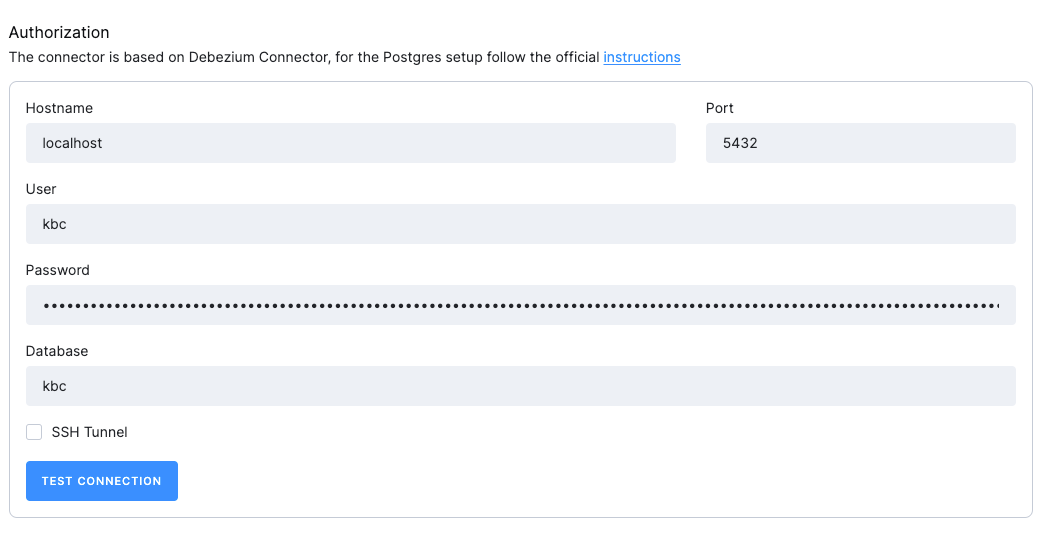
- Host: The hostname of the PostgreSQL server.
- Port: The port number of the PostgreSQL server.
- User: The username to be used to connect to the PostgreSQL server.
- Password: The password to be used to connect to the PostgreSQL server.
SSH tunnel
Section titled “SSH tunnel”You may opt to use an SSH Tunnel to secure your connection. The developer documentation provides detailed instructions for setting up an SSH tunnel. While setting up an SSH tunnel requires some work, it is the most reliable and secure option for connecting to your database server.
Data Source
Section titled “Data Source”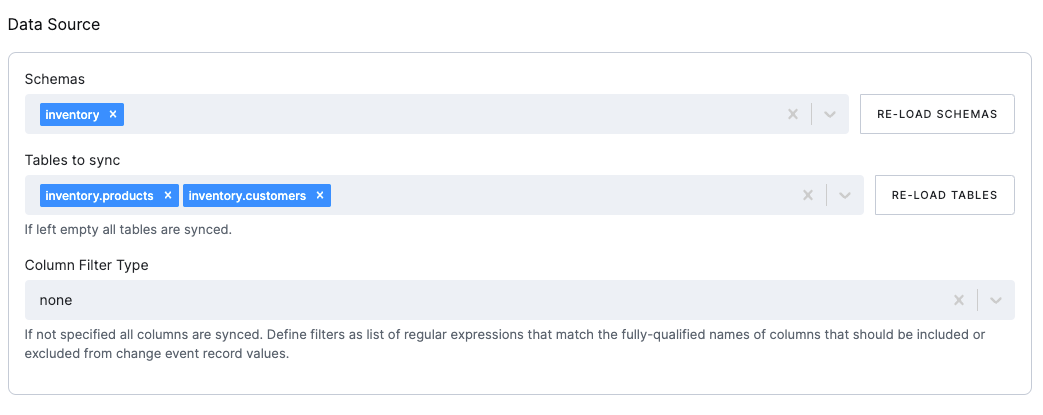
- Schemas: The schemas to be included in the CDC.
- Tables: The tables to be included in the CDC. If left empty, all tables in the selected schemas will be included.
Column filters
Section titled “Column filters”The column filters are used to specify which columns should be included in the extraction. The list can be defined as a
comma-separated list of
fully-qualified names, i.e., in the form schemaName.tableName.columnName.
To match the name of a column, the connector applies the regular expression that you specify as an anchored regular expression. The expression is used to match the entire name string of the column; it does not match substrings that might be present in a column name.
- Column Filter Type: The column filter type to be used. The following options are available:
None: No filter applied, all columns in all tables will be extracted.Include List: The columns to be included in the CDC.Exclude List: The columns to be excluded from the CDC.
- Column List: List of the fully qualified column names or regular expressions that match the columns to be included or excluded (based on the selected filter type).
Column Masks
Section titled “Column Masks”Column masks are used to mask sensitive data in the extraction.
Specify a comma-separated list of fully qualified column names in the format schemaName.tableName.columnName.
The connector applies the specified expression as an anchored regular expression to match the full column name, not partial substrings that may appear in the name.
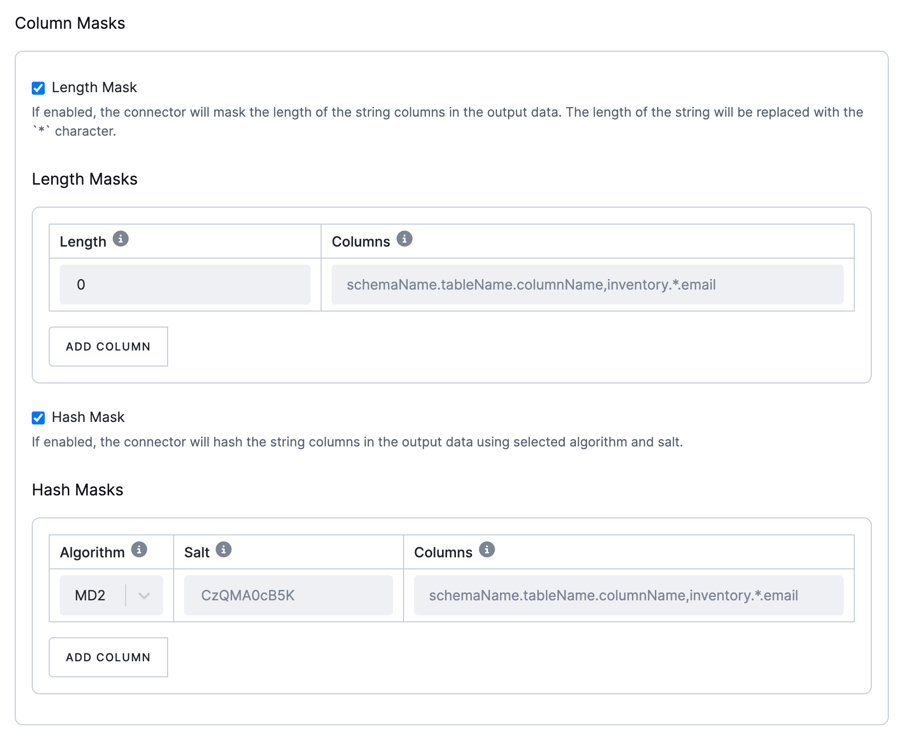
There are two types of masks available:
Length mask
Section titled “Length mask”This mask replaces the length of string columns in the output data with a specified number of * characters.
For more details, refer to the Debezium documentation.
Hash mask
Section titled “Hash mask”This mask hashes string columns in the output data using a selected algorithm and salt.
You may choose from various hashing algorithms, such as SHA-256, SHA-512, MD5, and SHA-1.
Based on the hash function used, referential integrity is maintained while column values are replaced with pseudonyms.
Supported hash functions are described in the MessageDigest section of the Java Cryptography Architecture Standard Algorithm Name Documentation.
For more details, refer to the Debezium documentation.
Sync Options
Section titled “Sync Options”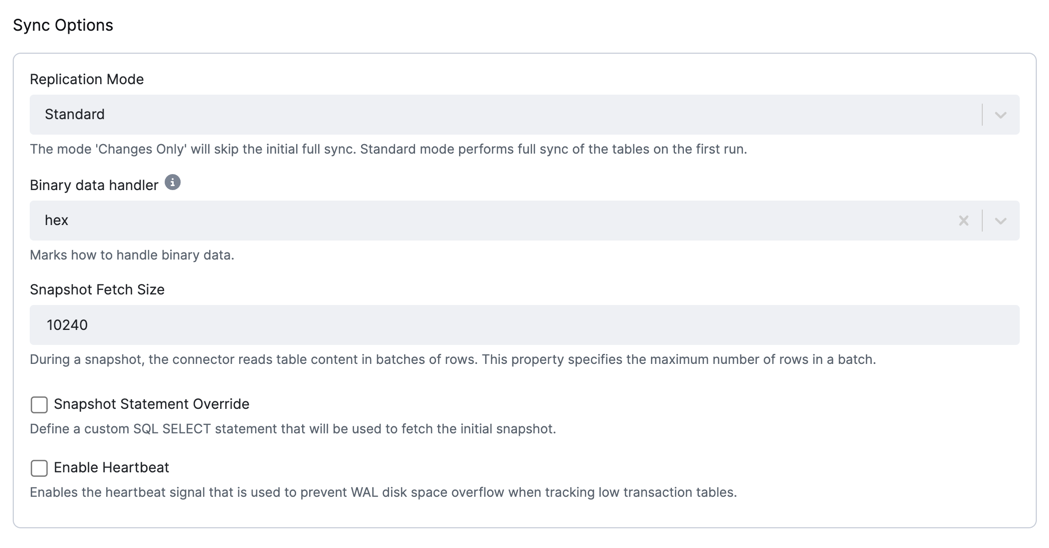
- Replication Mode: The replication mode to be used. The following options are available:
Standard: The connector performs an initial consistent snapshot of each of your databases and reads the transaction log (WAL) from the point at which the snapshot was made.Changes only: The connector reads the changes from the transaction log (WAL) immediately, skipping the initial load.
- Binary data handler: Specifies how binary columns, for example, blob, binary, and varbinary, should be represented in
change events. The following options are available:
Base64: represents binary data as a base64-encoded String.Base64-url-safe: represents binary data as a base64-url-safe-encoded String.Hex: represents binary data as a hex-encoded (base16) String.Bytes: represents binary data as a byte array.
- Snapshot Fetch Size: During a snapshot, the connector reads table content in batches of rows. This property
specifies the maximum number of rows in a batch. The default value is
10240. - Snapshot Statement Override - Define a custom SQL SELECT statement to be used for fetching the initial snapshot.
Heartbeat
Section titled “Heartbeat”Enable heartbeat signals to prevent the consumption of WAL disk space. The connector will periodically emit a heartbeat signal to the selected table.
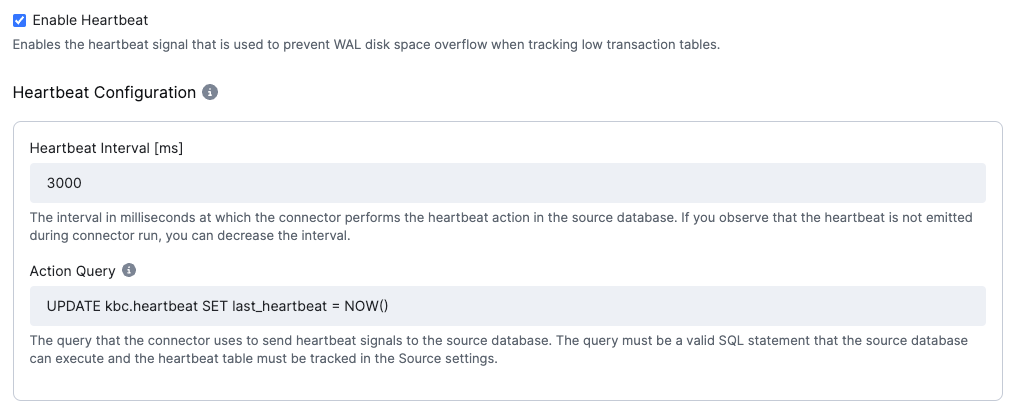
- Heartbeat interval [ms]: The interval in milliseconds at which the heartbeat signal is emitted. The default value
is
3000(3 s). - Action Query: The query that the connector uses to send heartbeat signals to the source database. The query must be a valid SQL statement that the source database can execute, and the heartbeat table must be tracked in the Source settings.
Replication Plugin Advanced Options
Section titled “Replication Plugin Advanced Options”These parameters control whether the connector creates a publication and how it is created. It is recommended to create publications manually before setting up the connector. Automatic creation works only if the user has owner permissions on the tables.
More information about the publication creation process can be found in the Publication Creation section.
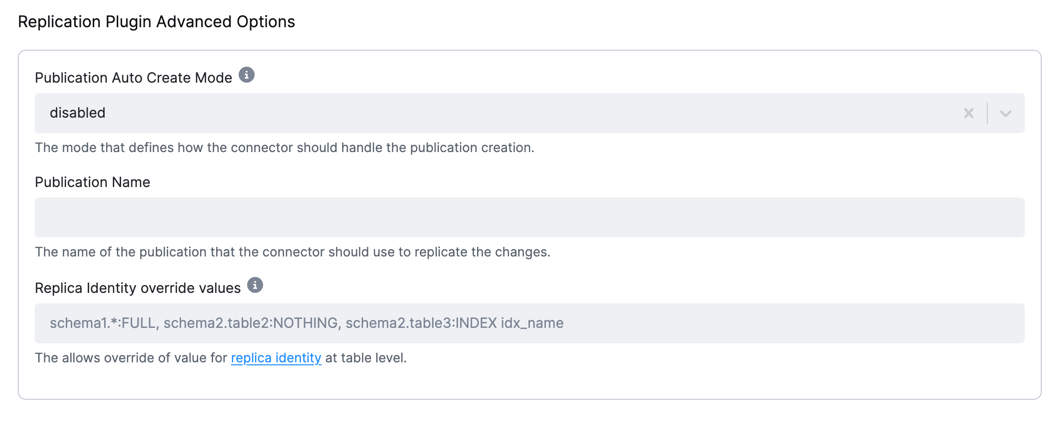
- Publication Auto Create Mode: The mode specifying how the connector creates publications. The following options
are available:
disabled: The connector does not create a publication. A database administrator or the user configured for replication should create the publication before running the connector.all_tables: The connector creates a publication for all tables in the database from which the connector captures changes. The user must be a superuser to add all tables to the publication.filtered: The connector creates a publication for tables that match the current configuration. The user must be the table owner to add tables to a publication.
- Publication Name: The name of the publication to be used by the connector. The publication name is generated based on the configuration ID and, optionally, the branch ID.
- Replica identity override values: This option overwrites the existing value in the database. A list of regular expressions matches fully qualified tables and replica identity values to be used in the table.
- If you wish to keep previous values on
DELETEDrecords, the replica identity must be set toFULL; otherwise, all values except the primary key will be empty on deleted records. - Leave empty to keep the database default.
- For more information, see the Replica Identity section.
- If you wish to keep previous values on
Destination
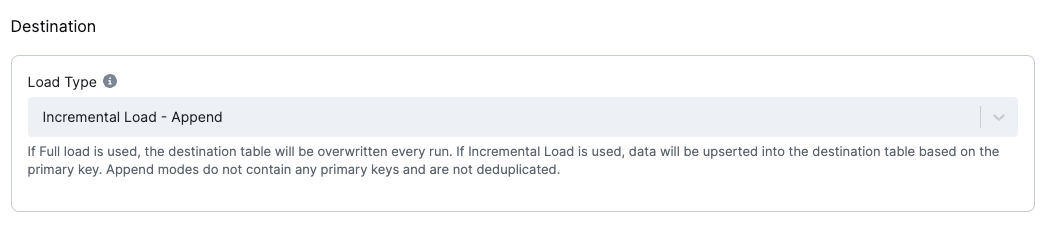
Section titled “Destination”The destination is a mandatory configuration option that specifies how the data is loaded into the destination tables.
Load type
Section titled “Load type”The Load Type configuration option specifies how the data is loaded into the destination tables.
The following options are available:
Incremental Load - Deduplicated: The connector upserts records into the destination table. The connector uses the primary key to perform an upsert. The connector does not delete records from the destination table.Incremental Load - Append: The connector produces no primary key. The order of the events will be given by theKBC__EVENT_TIMESTAMP_MScolumn + helperKBC__BATCH_EVENT_ORDERcolumn which contains the order in one batch.Full Load - Deduplicated: The destination table data will be replaced with the current batch and deduplicated by the primary key.Full Load - Append: The destination table data will be replaced with the current batch, which will not be deduplicated.