

YourPass
YourPass enables users to create passes for mobile wallets; e.g., for boarding passes, loyalty points, or tickets.
The YourPass data destination connector uses the YourPass API to create/delete/update YourPass passes.
Configuration
Section titled “Configuration”Create a new configuration of the YourPass data destination connector.
Authorization Configuration
Section titled “Authorization Configuration”Fill in the required authorization parameters:
Username: your YourPass username/emailPassword: your YourPass passwordClient Id: your YourPass client IdClient secret: your YourPass client secret; if not specified, can be left empty.
Then you can toggle between sandbox mode and production mode using the checkbox. When the checkbox is checked, the sandbox mode is set.
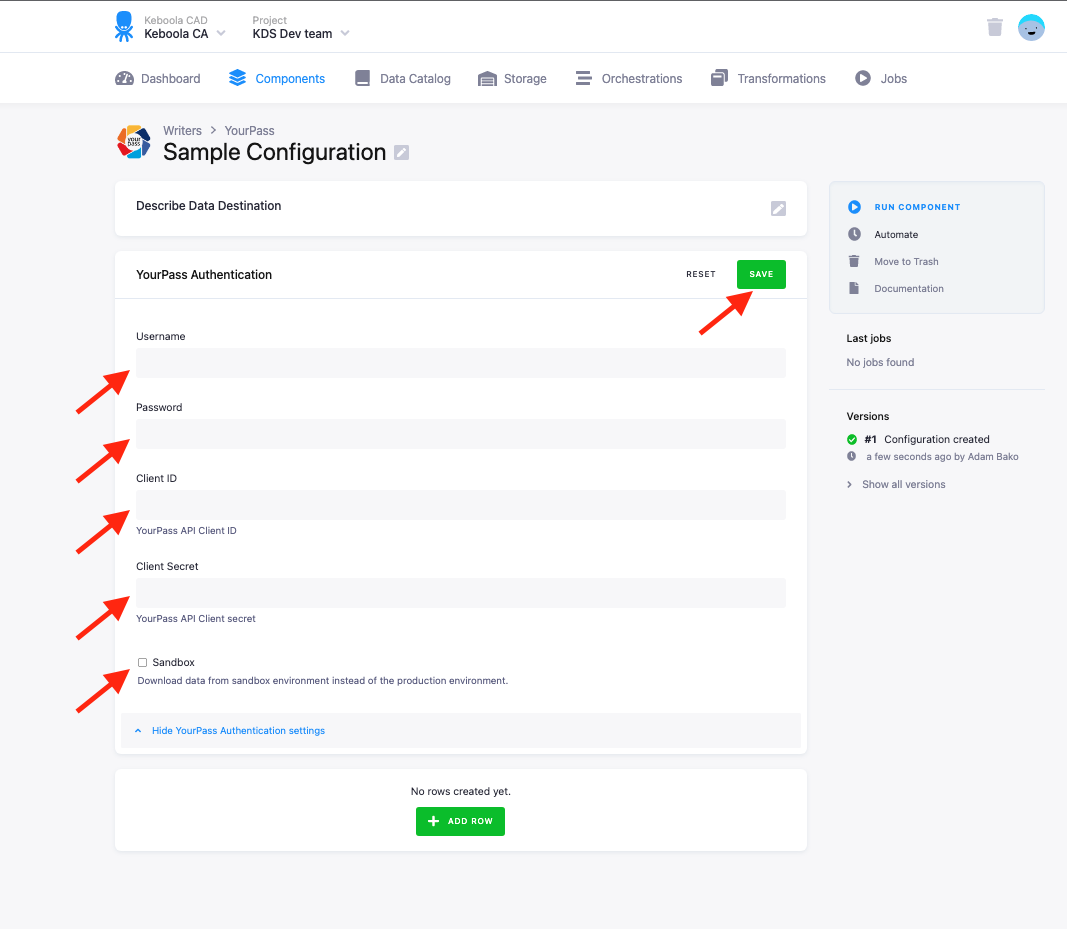
Save the configuration and then click Add Row to create a new row configuration.
Row Configuration
Section titled “Row Configuration”Endpoints
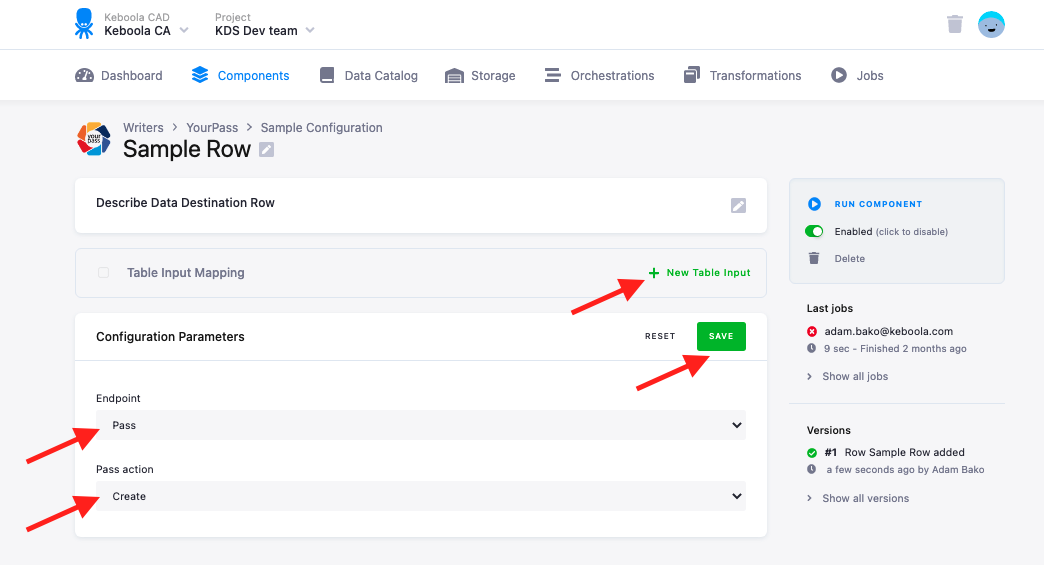
Section titled “Endpoints”In the row configuration select the Pass endpoint to modify Pass data (only the pass endpoints are currently supported by the connector). Then select the exact action you want to perform :
- Create : create a new pass
- Delete : delete an existing pass based on an ID
- Update : update an existing pass
For each action there are specific requirements for the input tables, these are explained in the Input file properties section.
Once all configurations are set, click save to save the configuration.
Input table mapping
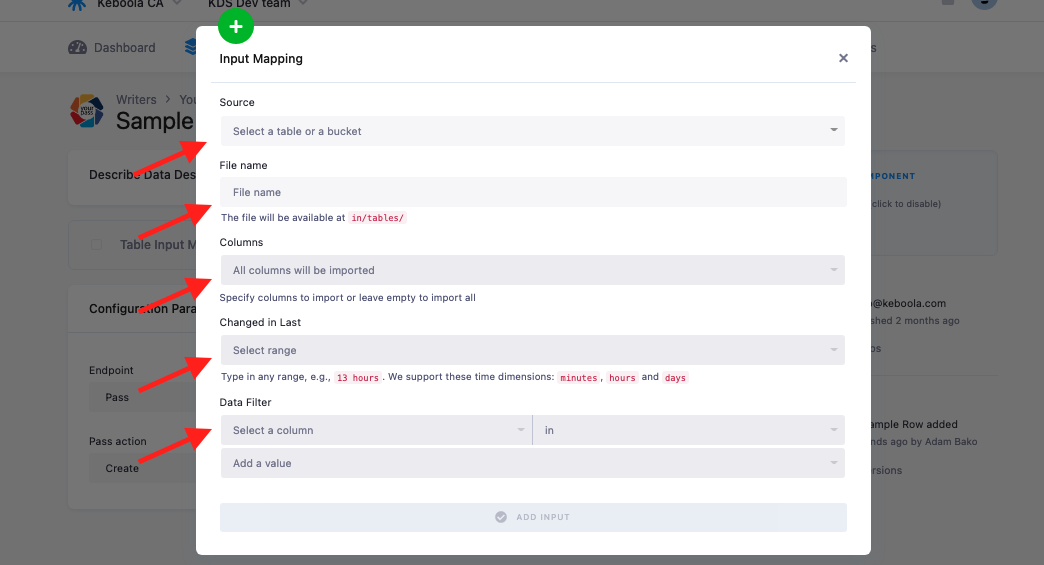
Section titled “Input table mapping”Click New Table Input to add one table to the Input Mapping.
Input file properties
Section titled “Input file properties”Each action (create/delete/update) on the pass requires different input data in a specific format, with headers of a specific name. The header names of the data in the input table should be in line with the header names of YourPass properties (case-sensitive).
Create
Section titled “Create”To create passes, add a table into the input mapping with the following columns:
templateId(required)expirationDate(optional) - in ISO 8601 format, YYYY-MM-DDTHH:MM:SS[.mmmmmm]Z ex.: “2021-10-30T14:00:00.000000Z”dynamicData(optional) - flattened with an underscore as described in Adding dynamic data and dynamic imagesdynamicImages(optional) - flattened with an underscore as described in Adding dynamic data and dynamic images
Delete
Section titled “Delete”To delete passes, add a table into the input mapping with the following columns:
id(required)
Update
Section titled “Update”To update passes, add a table into the input mapping with the following columns:
id(required)templateId(required)expirationDate(optional) - in ISO 8601 format, YYYY-MM-DDTHH:MM:SS[.mmmmmm]Z ex.: “2021-10-30T14:00:00.000000Z”dynamicData(optional) - flattened with an underscore as described in [Adding dynamic data and dynamic images](#### Adding dynamic data and dynamic images)dynamicImages(optional) - flattened with an underscore as described in [Adding dynamic data and dynamic images](#### Adding dynamic data and dynamic images)voided(optional) - is a boolean value : “True” or “False”
Adding dynamic data and dynamic images
Section titled “Adding dynamic data and dynamic images”All dynamic data and images should be flattened with an underscore.
{ "templateId": "1101", "dynamicData": { "lastName": "Jedno", "fistName": "Tomáš" }, "dynamicImages": { "logo": "id-of-logo-image", "strip": { "cs": "id-of-czech-image" } }}Will be
{ "templateId": "1101", "dynamicData_lastName": "Jedno", "dynamicData_fistName": "Tomáš" "dynamicImages_logo": "id-of-logo-image", "dynamicImages_strip_cs": "id-of-czech-image"}