
Azure Cost Management
This data source connector uses the Azure Cost Management API to import cost and usage data of an Azure subscription.
Configuration
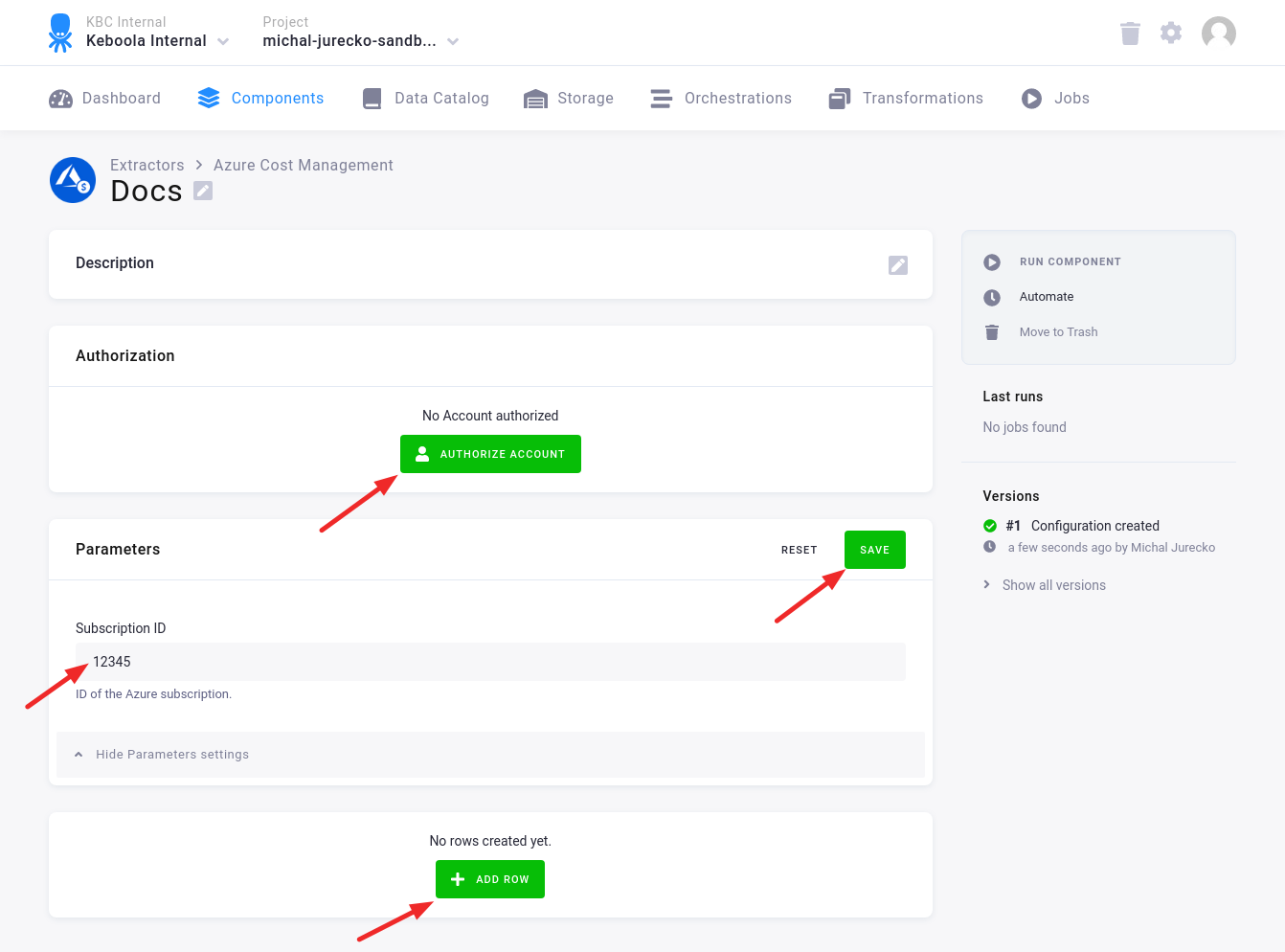
Section titled “Configuration”Create a new configuration of the Azure Cost Management connector.
Then click Authorize Account to authorize the configuration with your Azure account.
Fill in the Subscription ID and click Save.
Click Add Row to add one or more configuration rows.
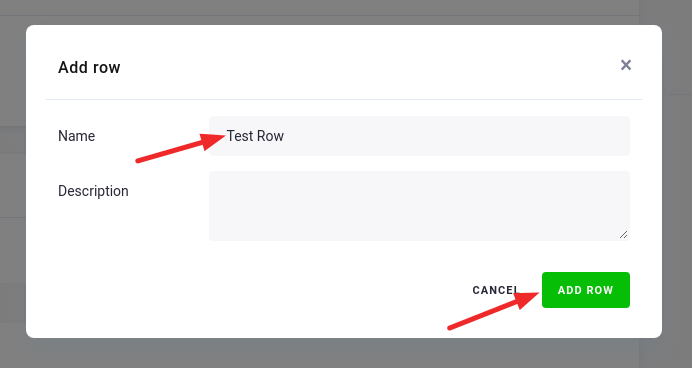
Fill in the name, and, optionally, the description. Then click Add Row.
In the Configuration Row fill in
- Destination Table — the name of the table in the project’s bucket where the results are written.
- Grouping Dimension — the columns you are targeting.
- Time Frame — the predefined or custom time frame.
- And, optionally, other fields.
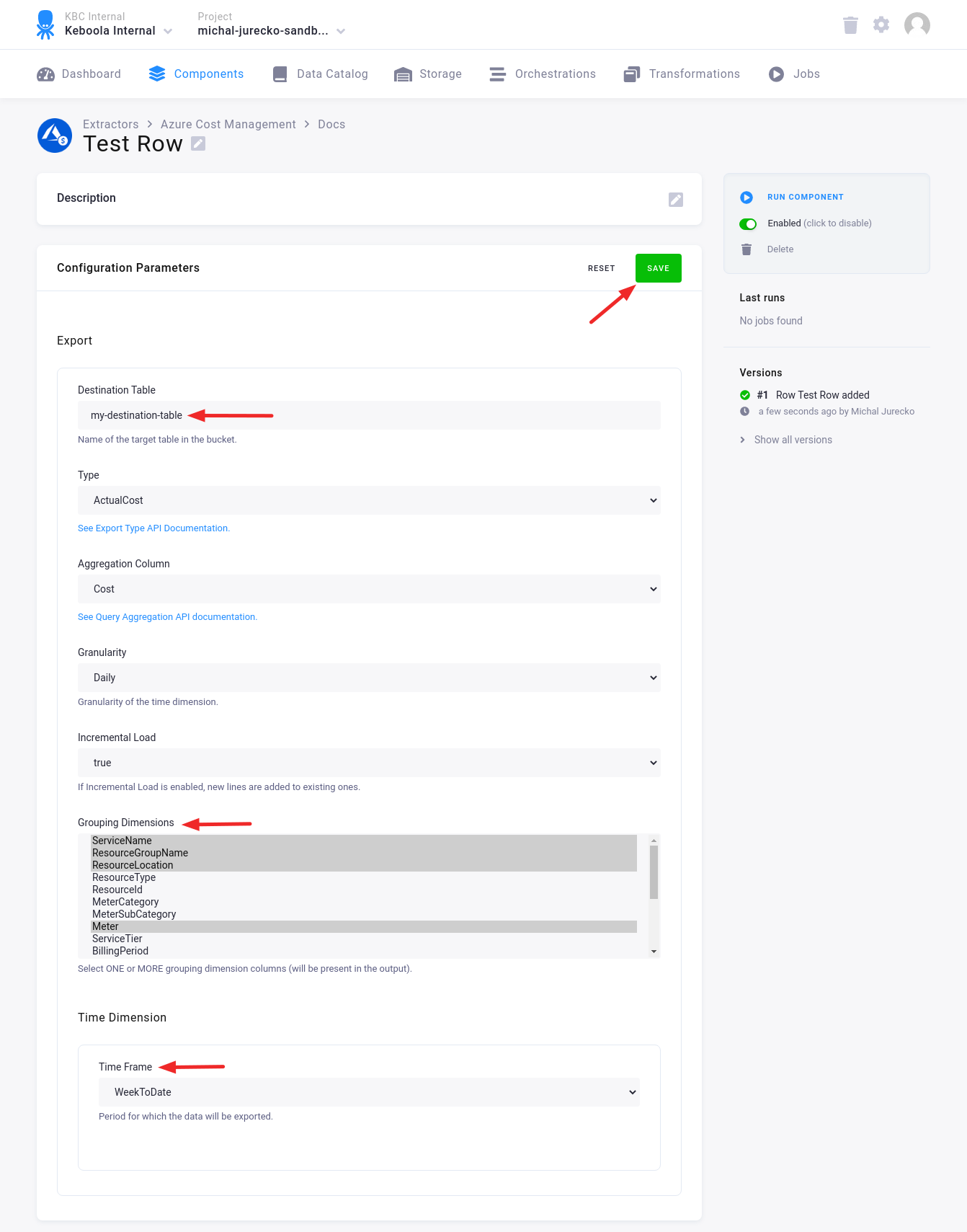
If the Incremental Load is set to true, the new data will be appended to the old ones. This way you can import new data, e.g., from today, without deleting the data imported before.
Output Table
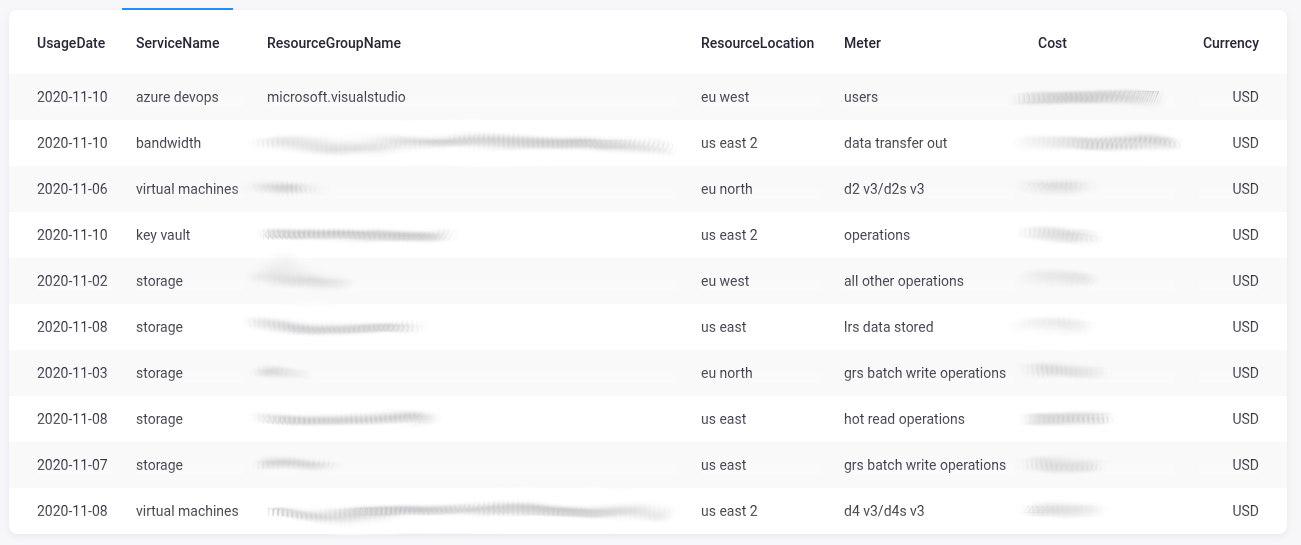
Section titled “Output Table”The output table contains the following columns:
- Time dimension, if enabled; art of the primary key
- Columns from the grouping dimension; part of the primary key
- Cost/Usage column
- Currency column